One API, Two Wallets: Google Wallet Support Is Live
The same pass request now returns both an Apple .pkpass file and a Save to Google Wallet link. How the cross-platform request, response, button, and update path work.
Google Wallet support is live. The request you already send to create an Apple pass now also returns a Save to Google Wallet link. There is no second integration to write and no second pass model to learn: one request body, validated once, produces a signed .pkpass file for Apple and a save link for Google.
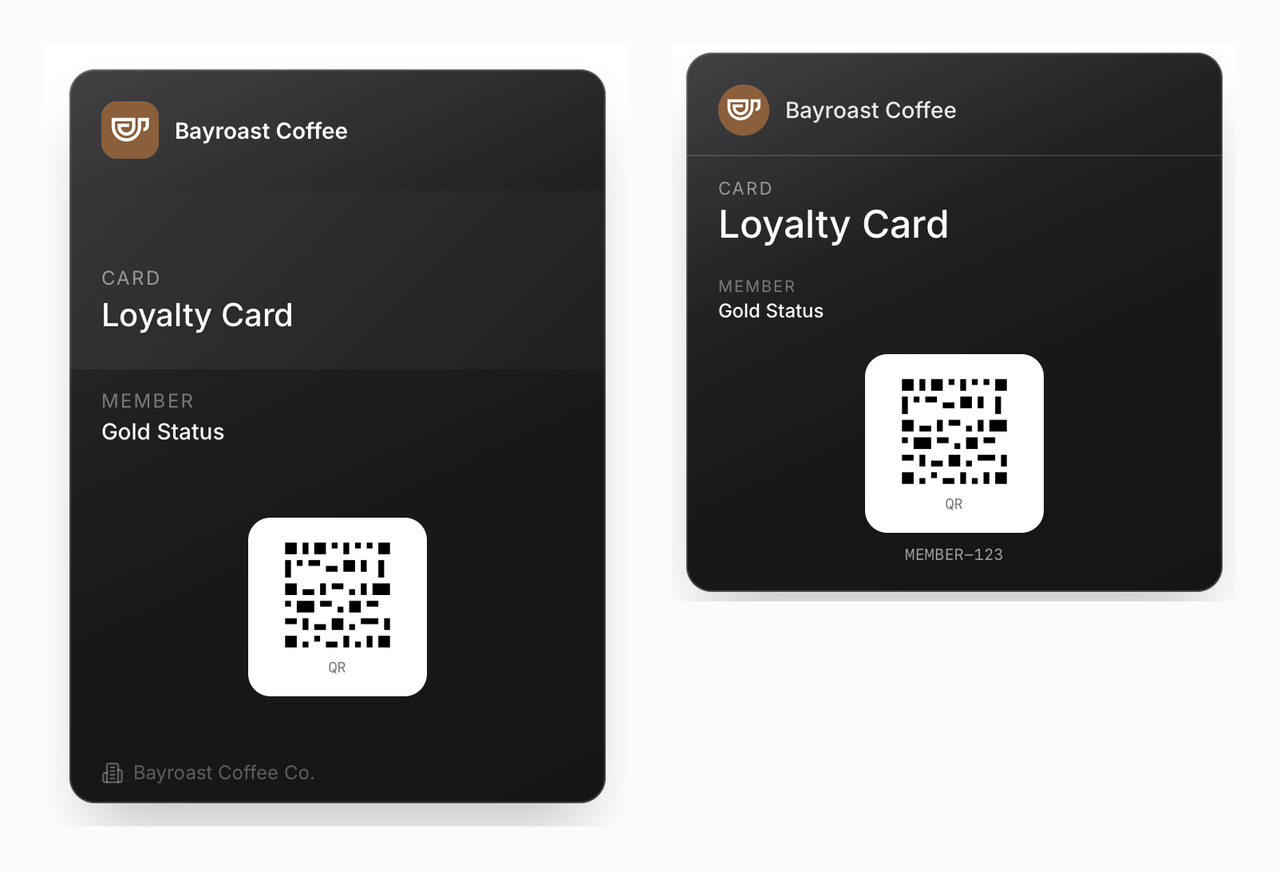
One request to /api/passes creates both cards.
Updates stay just as unified. A single PUT refreshes the pass on whichever wallet a user installed it in.
One request, both wallets
You describe a pass with a neutral JSON body and POST it to /api/passes:
curl -X POST https://api.walletwallet.dev/api/passes \
  -H "Authorization: Bearer ww_live_..." \
  -H "Content-Type: application/json" \
  -d '{
    "title": "Bayroast Coffee",
    "colorPreset": "dark",
    "logoText": "Bayroast Coffee",
    "barcodeFormat": "QR",
    "barcodeValue": "MEMBER-4821",
    "primaryFields": [{ "label": "Member", "value": "Ada L." }],
    "secondaryFields": [{ "label": "Stamps", "value": "3 / 10" }]
  }'
The response is a JSON envelope with everything you need to put the pass on either phone:
{
  "serialNumber": "b9c1f2e4-...",
  "googleSaveUrl": "https://pay.google.com/gp/v/save/eyJhbGci...",
  "applePass": "UEsDBBQACAgI...",
  "shareUrl": "https://api.walletwallet.dev/p/b9c1f2e4-..."
}
applePass is the base64 of the signed .pkpass. googleSaveUrl is a signed link to Google Wallet. shareUrl is a hosted page that offers both. All three come from the one request, so the two cards carry the same data and the same look.
The share URL: one branded page, either wallet
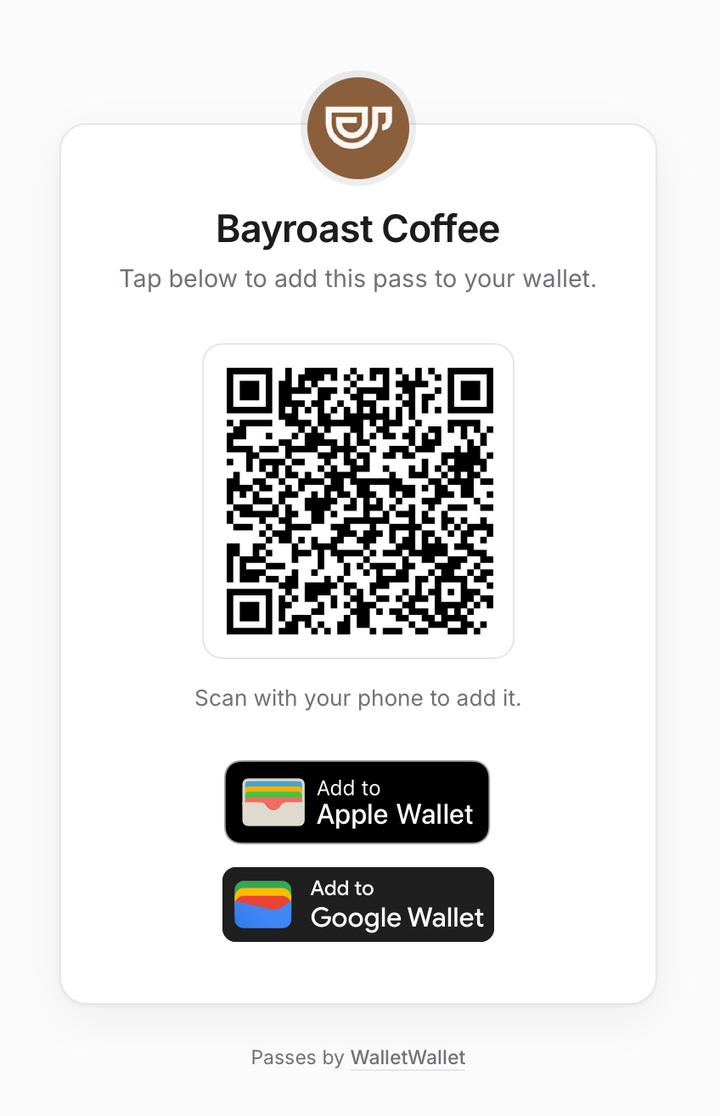
The shareUrl is a hosted page for the pass, branded with its logo and color, that presents both the Apple and the Google option. You hand a customer one link and they pick the wallet they have, with no device detection and nothing to host yourself:
https://api.walletwallet.dev/p/b9c1f2e4-...Drop it into a confirmation email, a text message, or an “Add to your wallet” button on your own site. The page reads the pass by its serial and shows the right action on either platform.
Your existing .pkpass calls are unchanged
POST /api/pkpass still returns the raw .pkpass binary as its body, exactly as before. The Google link rides along on a response header instead, so a client that reads the body for the file and ignores headers behaves identically to how it did last week:
curl -X POST https://api.walletwallet.dev/api/pkpass \
  -H "Authorization: Bearer ww_live_..." \
  -H "Content-Type: application/json" \
  -d @pass.json \
  -D headers.txt \
  -o member.pkpass

grep -i x-google-save-url headers.txt
# x-google-save-url: https://pay.google.com/gp/v/save/eyJhbGci...
One update path for both platforms
When the pass changes, send the new contents to PUT /api/pkpass/{serial} with the serial you got at creation:
curl -X PUT https://api.walletwallet.dev/api/pkpass/b9c1f2e4-... \
  -H "Authorization: Bearer ww_live_..." \
  -H "Content-Type: application/json" \
  -d '{
    "title": "Bayroast Coffee",
    "colorPreset": "dark",
    "logoText": "Bayroast Coffee",
    "barcodeFormat": "QR",
    "barcodeValue": "MEMBER-4821",
    "primaryFields": [{ "label": "Member", "value": "Ada L." }],
    "secondaryFields": [{ "label": "Stamps", "value": "4 / 10" }]
  }'
PUT replaces the pass contents rather than patching them, so send the full body you want the pass to hold. That one call propagates to both platforms.
Where the platforms still differ
The one difference you will notice is in how an update notifies the user. Apple shows a lock-screen banner with the changeMessage you set on the changed field, while Google surfaces the same update as a “New message” notification. The pass updates the same way on both from your single PUT; only the alert that announces it looks different.
Frequently asked questions
Can I get a share page for passes I created before this launch?
Yes. Every pass already has one. Take a serial from any earlier response and open https://api.walletwallet.dev/p/{serial}. The page is built on demand from the stored pass, so a pass you issued months ago gets the same branded Apple-and-Google page with nothing to migrate and no re-issue.
How are the share and save URLs protected?
The serial is the key. It is a random, effectively unguessable UUID, so holding the link is what grants access, the same way the .pkpass download has always worked. Nothing in the URL carries your API key, so you can put it in an email or a public button without leaking credentials. Anything that changes a pass still needs your Authorization header.
What happens to my existing /api/pkpass calls?
They keep working exactly as before. The route still returns the raw .pkpass as the body; the only addition is the Google save link, which now comes back in the x-google-save-url response header. Add ?format=json if you would rather have the full JSON envelope.
Will the pass look the same on both wallets? Close, by design. Apple and Google render passes differently, so nothing lands pixel for pixel, but the color presets resolve to the same values and the logo and fields land in matching regions, so it reads as the same pass on either phone. The Apple pass anatomy and Google pass anatomy guides map every field on each.
Can I preview a pass before calling the API? Yes, and you can do far more than preview. The pass editor lets you design the pass and see both the Apple and the Google rendering update as you type. From there you can open the live share page, install the pass on your own phone, watch the editor detect the install, and fire a remote update to see it land on the device. You can test the whole lifecycle before you write a line of integration code.
Start issuing
Get an API key from the dashboard, send one POST /api/passes, and you have both a .pkpass and a Save to Google Wallet link from a single request.
Build your first wallet pass
Turn one JSON request into a pass that installs in Apple Wallet and Google Wallet, with live updates that reach both.